> For the complete documentation index, see [llms.txt](https://docs.lendle.xyz/llms.txt). Markdown versions of documentation pages are available by appending `.md` to page URLs; this page is available as [Markdown](https://docs.lendle.xyz/user-guide-for-ui-v1/markets/deposit/how-to-deposit.md).
# How-To-Deposit
Providing liquidity to the Lendle market
In this Tutorial we will be depositing MNT through the [Markets](/user-guide-for-ui-v1/markets.md)
{% embed url="" %}
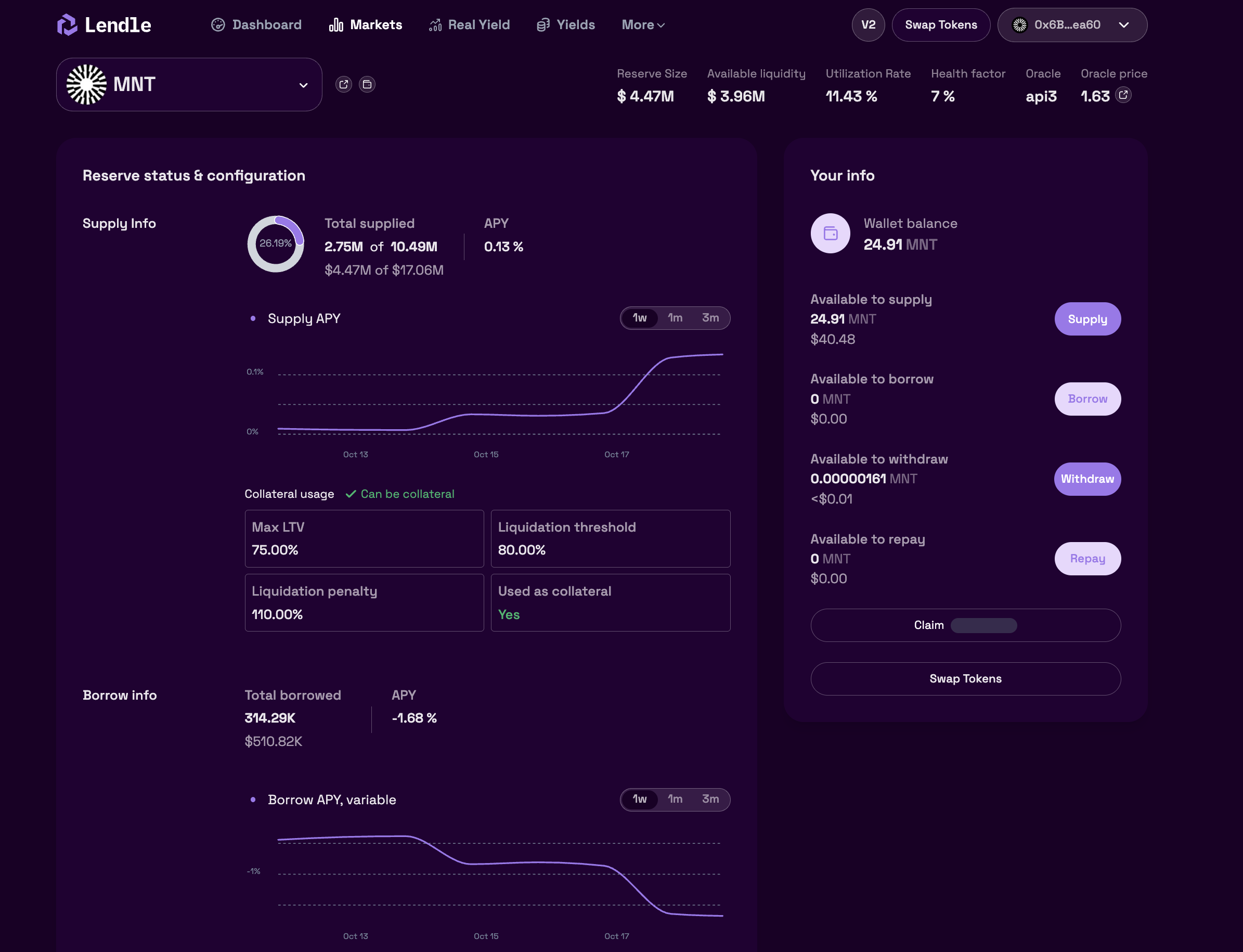
We've opened one of the markets from this screen, in this example it's MNT.
*Under 'Reserve status & configuration' you can see:*
* *The total amount of MNT that is supplied by users*
* *The yield in APY (from protocol fees) and APR (from $LEND token)*
* *The collateral usage*
* *The Loan-To-Value (LTV) percentage, MAX LTV, indicates how much of your deposited MNT can be used to take a loan against*
* *The Liquidation Threshold percentage shows the investor when the collateral becomes available for liquidation. i.e. If the outstanding loan equals or exceeds 85% of the MNT deposited, it will be liquidated.*
* *The Liquidation Penalty percentage indicates the Bounty a liquidator can get from liquidating a position on this market. The penalty is taken from the investors' collateral.*
*Under 'Borrow Info' you can see:*
* *The total amount of MNT borrowed.*
* *The APY for borrowing, i.e. the % on the outstanding loan you pay as interest for borrowing+ the reward APR in $LEND tokens for borrowing.*
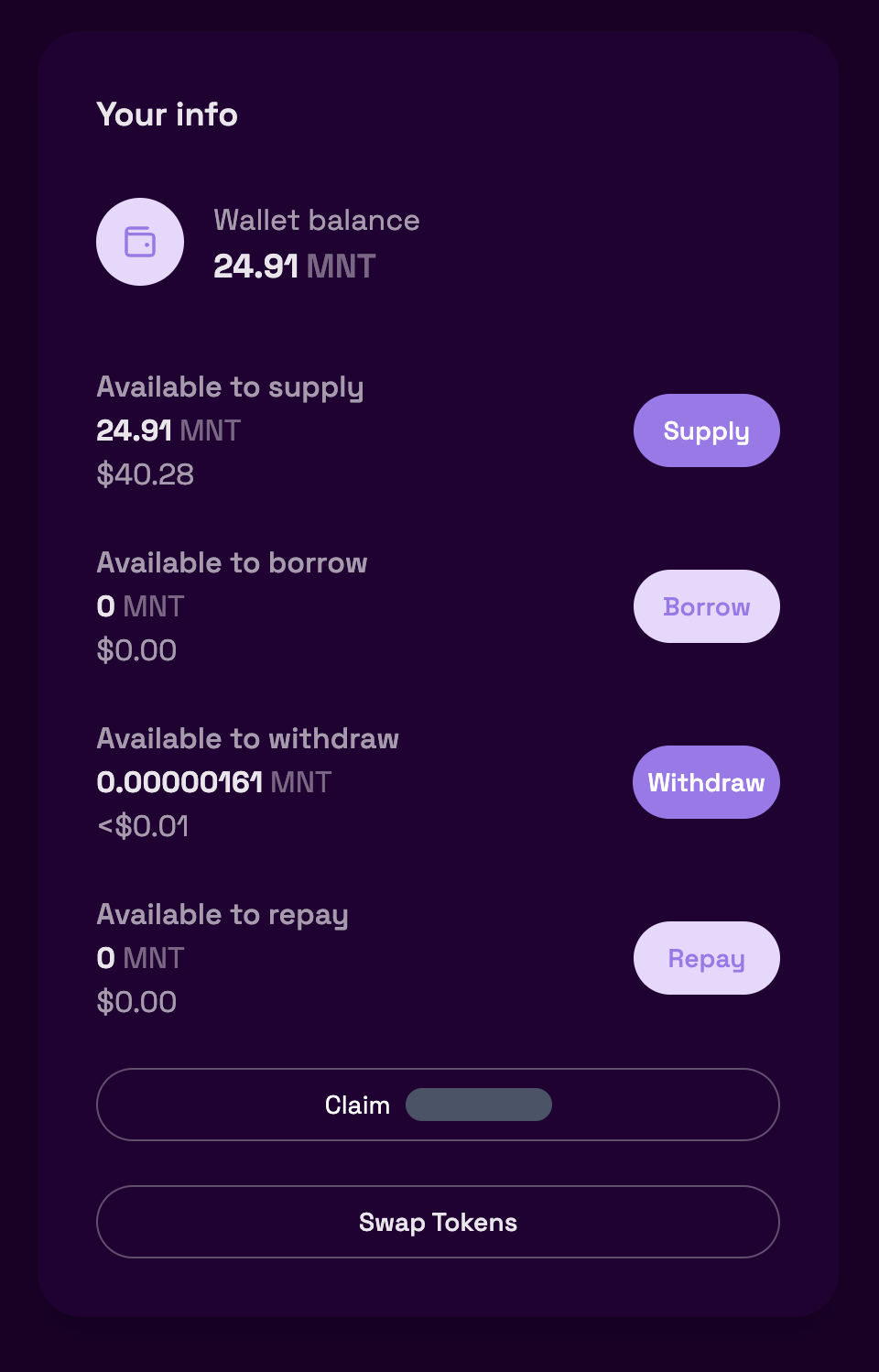
*On the right, under 'Your Info', you can see:*
* *The wallet balance in this market asset*
* *How much is available to supply and borrow*
* *2 buttons to supply and/or borrow this market's asset*
\
For the tutorial, we will click on supply which will take us to the supply screen for the MNT market:
*On the top you can see Your balance (any MNT that is already supplied), Your wallet balance (any MNT that is in your wallet) and your overall health factor.*\
\
*There is also more info about the MNT market, like Utilization rate (how much of the supplied MNT is borrowed), the available liquidity in the market to lend out, the reward APY from protocol fees and if this asset is currently available to be used as collateral (to borrow against)*
*Next to this we see the same information as on the previous screen, with the Maximum LTV, Liquidation Threshold and Liquidation Penalty %. We also display the Asset prize that we retrieve from our Oracle.*
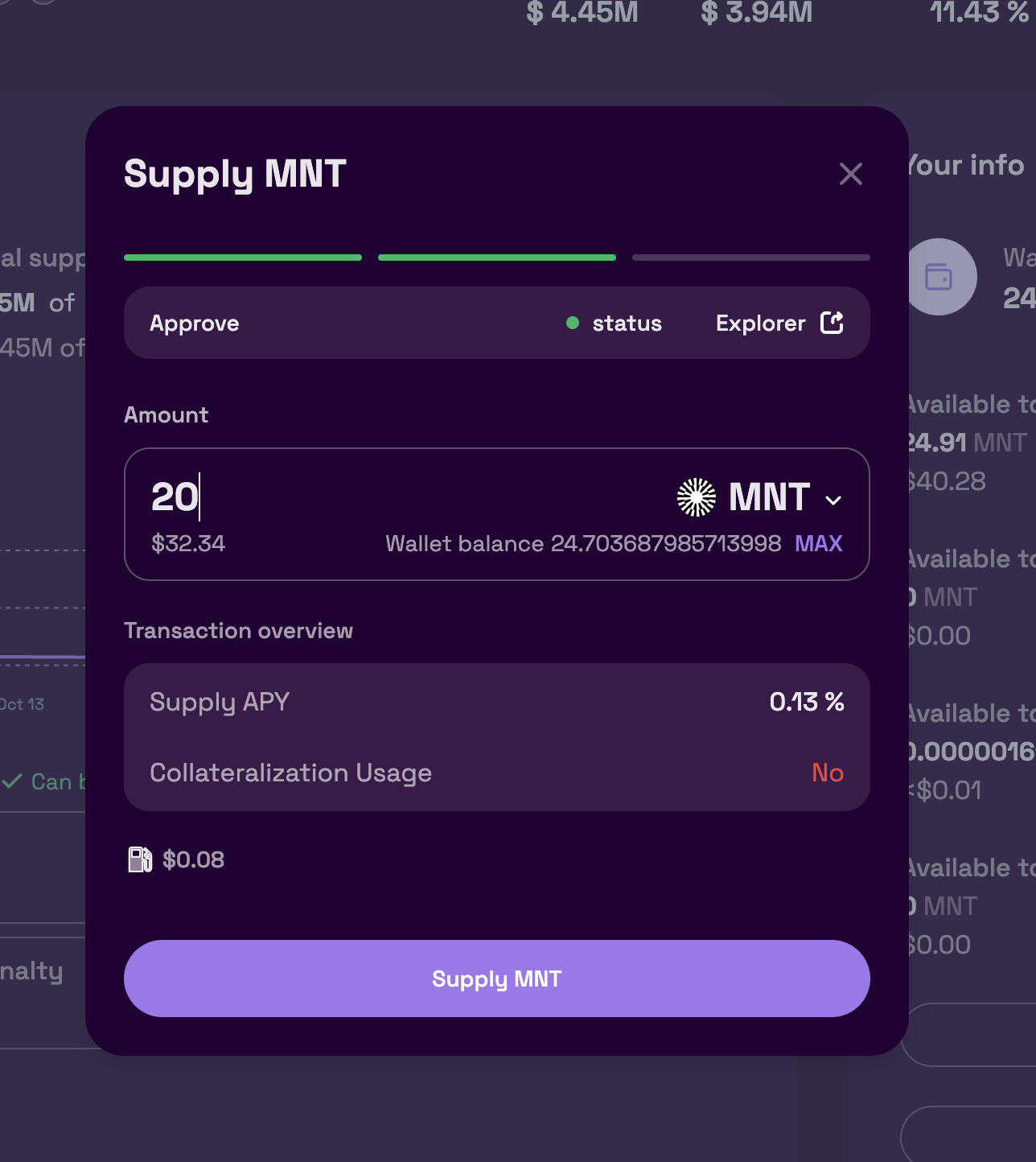
On the bottom we can either use MAX or input a custom number to deposit and press Continue to start the approval and deposit transactions:
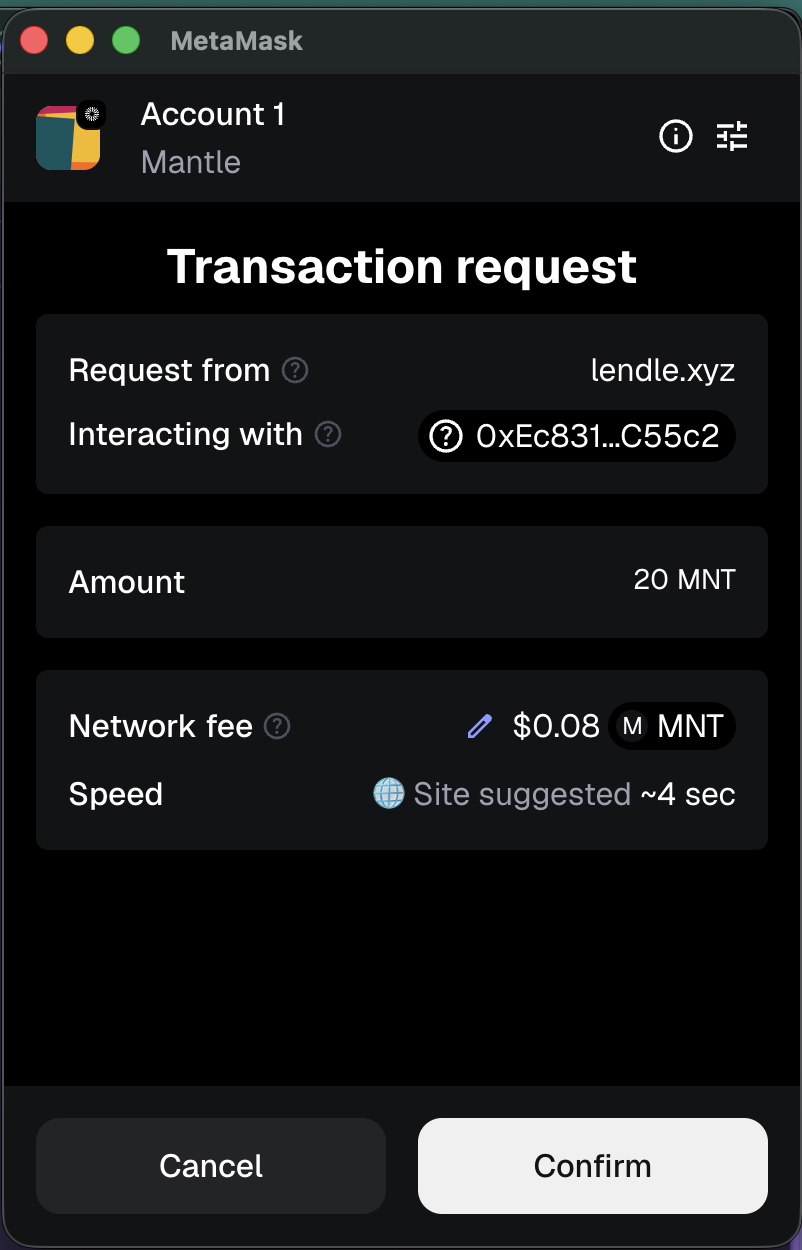
Press Approve, and press default in the MetaMask popup to approve the exact amount you are spending.
Press Deposit, and confirm the transaction once more in MetaMask.
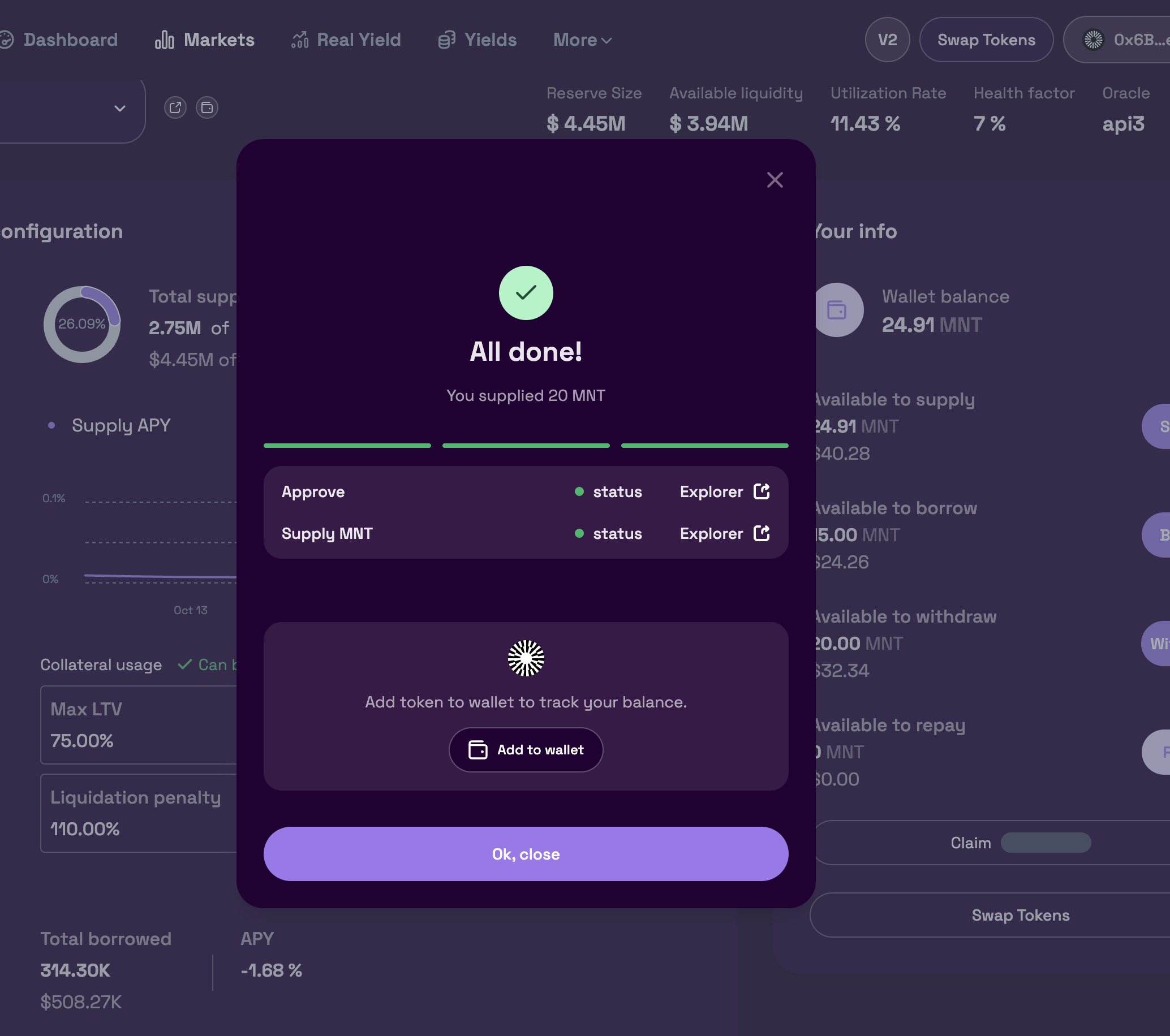
After a couple of seconds your screen will update (depending on RPC) and it should look something like this:
We can see in the Top left, that my balance has updated and my wallet balance is now 0.\
In the bottom you can see our 2 transactions, which can be followed to the block explorer for more info.
Success! We've now supplied MNT to Lendle.\
\
The next tutorial will be [How-To-Borrow](/user-guide-for-ui-v1/markets/borrow/how-to-borrow.md)
### Collateral
After you've deposited an asset, it will be enabled as collateral by default. A collateralised asset will activate your borrowing power and correlate with the number of loans you can make (depending on the Loan-To-Value \[LTV] settings of each market)
You can use the toggle on each asset in the Deposit screen to disable the asset from being used as Collateral. \
\
*Please note that this will influence your Health Factor and can lead to liquidation if this drops below 1*